
What's a normal active-time percentage for remote staff?

No single active-time percentage is normal across teams, because the labels that decide what counts are set for each team. Workfolio shows Productive Apps %, the share of Total Worked Time spent on apps labelled Productive, and also Active Time, time spent actively engaging with the system. Read them for the team first, then each person against their own earlier figures.
What the figures count
Workfolio shows Productive Apps %: Productive Apps Time over Total Worked Time. Productive apps are the apps and websites labelled Productive. An admin sets each label for each team, or a team head whom the admin allows to review apps and sites does. Labels are Productive, Neutral, or Unproductive; Neutral is the default, and a label applies to future data only. Read a figure against the labels that produced it. A team’s figure is not another team’s, and a figure from another tool counts by that tool’s rules.
Total Worked Time runs from clock-in to clock-out, less breaks. Idle time is inside it, and break time is outside it. Auto Clock-In and stealth mode start tracking without the employee clocking in, and an admin can turn an idle stretch into break time.
Active Time is time spent actively engaging with the system. It is a separate figure: Productive Apps % counts only time on apps labelled Productive.
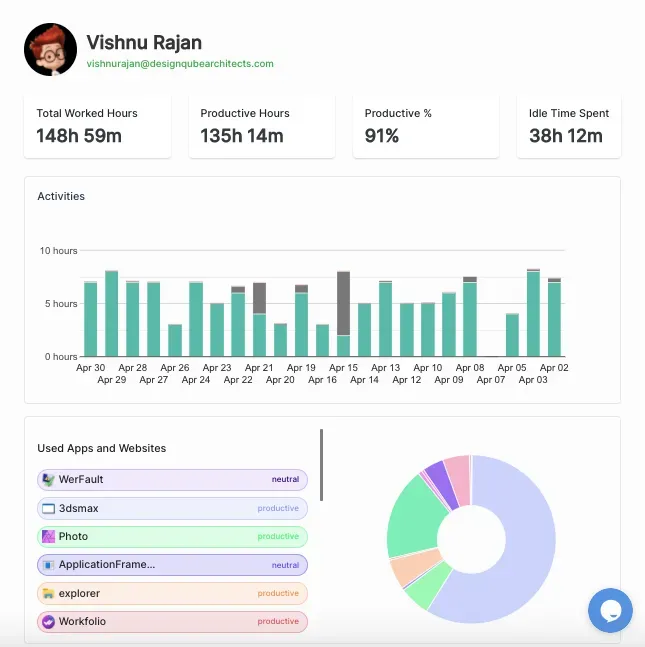
On one person’s totals, the tile labelled Productive % is Productive Apps %. On the screen below, 135h 14m of productive time out of 148h 59m of total worked time is the 91% shown. Idle Time Spent sits beside it.
What the figures do not mean
Workfolio does not judge how productive a person is. A high figure does not show good work, and a low one does not show poor work. The figure says where the hours went, not what came of them. The delivered work is the final test.
Tools do not all draw the line between active and idle in the same place, so a figure from another tool, or from a team with other labels, is not the same measure.
Read idle time with the threshold that applies to that person. An admin sets how many minutes without activity count as idle, for the organisation or for one person; a team head cannot. A pause shorter than the threshold is not idle time, and the same pause counts differently under another threshold. On the Review Apps page, the tab Exclude apps from idle time lets an admin, or a team head the admin allows, pick apps or websites for each team whose time always counts as active, even with no activity detected. A meeting app is the usual case.
How to read them in Workfolio, team first
Start with the team: its labels and its figures come before any one person’s. No step ranks people against each other.
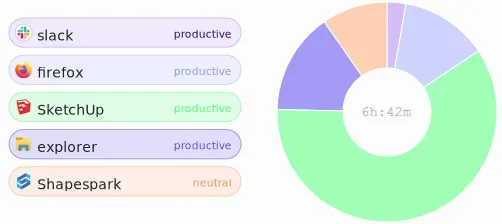
Check the labels with the team. Open the apps screen below and check each app’s label with the people who do that team’s work. Set the labels for this team, or ask an admin to, since labels are set for each team. A figure is only as good as the labels under the work it measures.
Next, read the team’s figures as a group. Open each person’s totals for four to six weeks of ordinary work, and read Productive Apps % and Idle Time Spent for the team together, to see what this team’s work looks like. A period of unusual work measures that period, so use ordinary weeks.
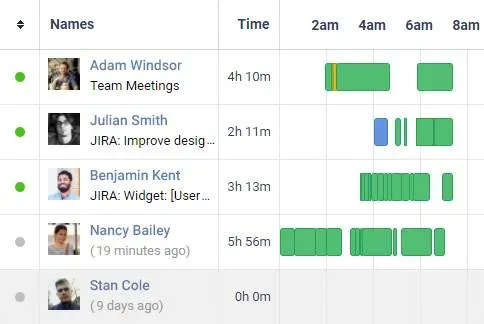
Next, check idle time on a day that raises a question. Open the daily timeline for that day. Each row is one person’s day on a clock axis, with the name and the time beside it. A stretch of idle time can be lunch, a school run, or a hard problem worked through away from the screen, so ask the person before you read anything into it.
Then compare each person with their own earlier figures, never with a colleague’s. A stable figure needs no explanation. A steady slide over weeks, or a sudden drop from that person’s own figure, is worth a conversation. Idle time works the same way: a steady rise above that person’s usual idle time, or a sudden jump, is worth a conversation.
Judge any drift against the output. A figure that has drifted may mean the person is blocked, or in a season of meetings; the figure says look, not what you will find. If the output is delivered and the figure is stable, there is nothing to fix. If the figure holds but the output has slipped, the conversation is about the work.
Where to start
Tell the team what the figure is for, and that it is not a quota, before anyone reads it. This week, check the app labels with the people who do the work. Then pull four to six weeks of Productive Apps % and Idle Time Spent for the team, and write them down with their dates and the idle threshold that applied. Next month, read the team’s figures for the new period against these, and only then compare any one person with their own earlier figures.

