
Which apps and websites count as unproductive for each role?

Whether an app or website counts as unproductive depends on the team that uses it. The same site can be the work for one team and browsing outside the job for another. So decide the labels before you read any unproductive share. Then read the share beside the work each person delivered.
Start from each role’s work, not from the app list
Take one team at a time. List its roles, and for each role list the apps and websites its people open to do the job. Ask the people in the role. They know which tools the work needs, and which they open only now and then.
Label an app productive when the role makes its output there, such as a code editor for a developer or a ticket queue for a support agent. Label it neutral when the role needs it but its use does not show output either way, such as a shared calendar. Label it unproductive when the role does not do its work there, such as a video site for an accounts clerk.
The same app can carry different labels. For a social media team, a social media site is the work itself. For a finance team it is unproductive. That is why each team gets its own list.
Set the labels in Workfolio for each team
In Workfolio, an admin, or a team head the admin allows, sets whether an app or website counts as productive, neutral, or unproductive, for each team. Apps and websites are neutral until labelled, and a label applies to data recorded after it is set. Set each team’s labels from the list written for it, before anyone reads a figure.
Check the finished list with the people who do the work, and ask them about any app you could not place. Then tell the team which of its apps are labelled unproductive, and why.
Meeting apps are the usual case for the Exclude apps from idle time tab of the Review Apps page: an admin, or a team head the admin allows, lists the apps or websites for each team there whose time always counts as active, even with no activity detected.
Read the unproductive share after the labels
Once the labels are set, open the totals card. It shows the worked hours, split into Productive, Unproductive and Neutral. Idle time is inside the worked hours, and break time sits beside them.
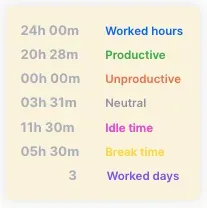
You can work out the unproductive share yourself: divide the unproductive hours by the worked hours on the same card. Time taken with Take a Break counts as break time. Workfolio tracks only while the employee is clocked in, so the card’s figures cover clocked-in time.
Read the share for each role, not as one team average. A team average mixes roles whose work lies in different apps, so it says little about any one of them.
Judge the share against the output
The share says where the hours went. It does not say what they produced. An app label sorts time by app. It cannot show what was done in the app. A person can spend the day in a productive app and deliver little, and a person with a high unproductive share can still deliver what was asked. The delivered work is the final test, and the share never outranks it.
When the share is high and the output is missing, ask the person what the apps were for before you judge the person. The label may be wrong, and the work may be too. When the share moves and the output holds, check the labels first.
Where to start
This week, list each team’s roles and the apps and websites each role opens. Label them with the people in each role, then set the labels for each team in Workfolio. Next month, work out the unproductive share from the totals card and read it beside the work each person delivered. Change a label only when the work shows it is wrong.

