
How to tell if remote employees are actually working

The work a team ships is what shows whether it is working. Monitoring data cannot show that the work got done. It can show where the hours went, so when output slips you can ask a specific question instead of guessing.
To put that into practice, start by telling the team openly what is collected and why, and write monitoring into the office policy. Then read the team’s figures before any one person’s, and never rank one person against another. Output stays the final test.
Tell the team openly before anyone is tracked
Tell the whole team at once what is collected, why, and who sees it, before the software goes on. Keep the purpose on proof of work, not on catching people out. A question asked after someone finds the tool on their computer reads as an accusation; the same question asked under a rule everyone heard reads as ordinary management. The law on notice varies, so check the rule where your staff work. How to tell your team you are starting employee monitoring gives a notice you can send.
Track Settings has a Stealth Mode (Beta Version) switch, on the Pro plan. With it off, the employee sees the Workfolio app window and its tray icon. With it on, neither shows, and tracking starts whenever the computer is on. Keep it off, and tell the team it is off.
Write monitoring into the office policy
The notice tells the team what is happening. The office policy keeps the same answers on paper, for people who join later and for anyone who asks what the rule is. Write in it what is tracked, why, who sees the record, how questions get answered, and the settings you chose. The Employee Monitoring Policy Template gives a policy you can adapt.
Name the team’s output
Before you open any report, write down what the team should have shipped at the end of a week: tickets closed, drafts written, releases shipped, customers answered. That list is the test. When the output is there, let people work, whatever the activity shows. When it slips, the figures help you find where the time went.
Read the team’s figures first
The figures below are the ones Workfolio’s user activity monitoring software shows. Read them for the team as a group before you look at any one person.
Workfolio’s daily timeline is a visual log of daily activities for every employee, split into productive time, idle time and break time. Read it as the team’s day: when work starts and stops, and where the idle stretches and breaks fall.
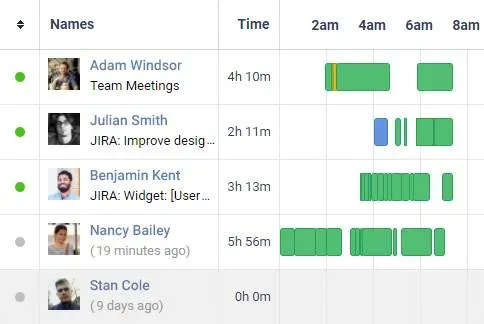
Idle time can be lunch, a school run, or a hard problem that needed time away from the screen. Calls, client visits, reading and planning leave no keyboard trace. An admin, or a team head the admin allows, can set apps or websites to count as active time for a team, such as a meeting app, under the Exclude apps from idle time tab on the Review Apps page. That time always counts as active, even with no activity detected.
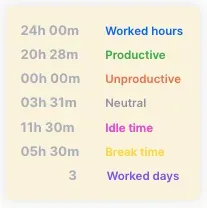
The totals card shows the worked time, split into productive, unproductive and neutral, with idle time, break time and the number of worked days.
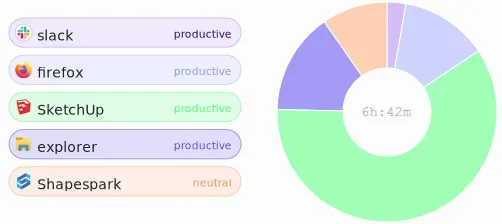
Workfolio tracks app and website usage, and shows the share of worked time spent in apps labelled productive. It does not judge how productive a person is. The app view shows each app’s label, productive, neutral or unproductive, beside the time by app. A manager sets those labels for each team, so check them with the people who do the work before you read the figure.
If the team’s output is there and its figures look like ordinary weeks, stop here. There is nothing to fix.
When output slips, look at one person against their own weeks
Go to one person only when the team’s output has slipped and their part of it is where the gap is. Compare them with their own earlier weeks, never with a colleague. Rules can flag people for working less, being idle or engaging in unproductive activities; the rules violated panel lists the employees each rule flagged.
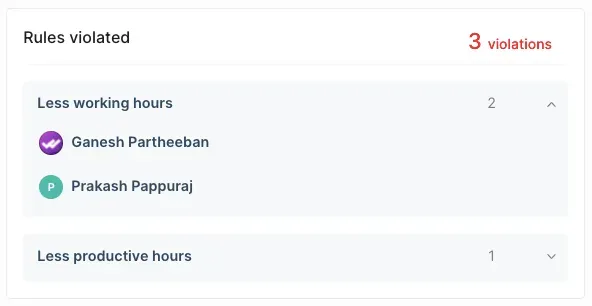
A flag is where you start, not where you finish. Check that day’s timeline and that week’s output before you raise it with anyone.
Open screenshots only for the stretch of the day that needs a closer look. Workfolio captures the whole screen of every display, not the active window. On the Basic plan a screenshot is taken every 10 minutes. On the Pro plan an admin sets the interval, from every minute to every hour. An admin can blur each whole capture, for the organisation or for one person. A screenshot shows what was on the screen at that moment, so treat what you see as a question to put to the person, not a verdict.
What a mouse jiggler looks like in the data
The mouse jiggler is the case managers ask about first. It is a small device or script that moves the cursor so the computer never looks idle. Activity stays high all day. It cannot make the output appear.
A day that does not add up is the tell: the same window on screen for half a day, screenshots that repeat, and no delivered work that week. The signals disagree with each other, and that disagreement is what to ask about. A jiggler can also cover a break rather than hours of work. Either way, the next step is a conversation, not a report.
Where to start
This week, tell the team what you will collect and why, turn Stealth Mode off, and write the same answers into the office policy. Then write down what the team should ship each week, and read the team’s figures against it before you open any one person’s day.

