
How to tell your team you are starting employee monitoring

Start monitoring by telling the team openly: in person and in writing, what is tracked, why, and who sees it, before the software goes on. Then write monitoring into the office policy, so the same answers hold for everyone, including people who join later. Turn off Stealth Mode, so each person can see the Workfolio app window and its tray icon on their own computer. Judge the work by what it ships.
Tell the team openly before the software goes on
Managers who ask this are usually facing work that is hard to see and hours that are hard to verify. They also expect the reaction an honest person predicts: the word “surveillance”, quiet resentment, and people polishing their activity numbers instead of doing the work. What helps is deciding, before install day, what you are doing and why, and saying it plainly to the people it affects.
Write monitoring into the office policy
The notice tells the team what is happening. The office policy keeps the same answers on paper, for people who join later and for anyone who asks what the rule is. Write in it what is tracked, why, who sees the record, how questions get answered, and the settings: how often screenshots are taken, whether they are blurred, and who can open them. The Employee Monitoring Policy Template gives a policy as a Word document you can adapt.
What the software records
Workfolio’s employee monitoring software tracks productive hours through computer activity: app and website usage, and the share of time spent on apps classified as productive. It shows this on a daily timeline of productive time, idle time and break time. It takes screenshots of the whole screen on every display: every 10 minutes on Basic, and on Pro at an interval an admin sets, from every minute to every hour.
Use that record to check hours and see where a day’s work stalled. Do not use it to keep anyone busy every minute. If you expect that from it, stop here: no announcement will fix that.
What to tell them, and in what order
Tell the whole team at once, in person or on a call, so nobody finds the Workfolio app on their computer first. Then send the same words in writing before the software goes on, and ask each person to reply that they have read them. The notice covers what is collected, why, who sees it, and where questions go. For who sees it, name the roles with access and how often you will actually look. A weekly summary is a different sentence from live screen-watching, so use the first only if it is true. The law on notice varies, so check the rule where your staff work before install day.
Subject: Employee monitoring starts on [install date]
Hi team,
We are starting employee monitoring on [install date]. You will have this in writing before the software goes on, and we will go through it together on [meeting date], with time for every question.
What is collected. Workfolio tracks productive hours through your computer activity: app and website usage, and the share of time spent on apps classified as productive, laid out on a daily timeline of productive time, idle time and break time. Screenshots of the whole screen on each of your displays are taken every (interval). [Say whether each capture is blurred.]
What you will see. The Workfolio app window and its tray icon on your computer.
Why we are doing this. [The honest reason, in your words: hours we can verify, a record we can check, less need to chase anyone for updates. If something went wrong first, say so here, and what would wind monitoring down.]
Who sees it. [The roles with access] can see it. [Role] looks at it [how often: only what is true].
Who collects and keeps it. [Name and address of the company that collects the data, and of the company that keeps it]
Questions. If something recorded looks wrong, ask [name or role]. [How a mistake gets corrected.]
How we will use it. The record is a prompt for questions, never a verdict. [Any rules that flag people, by name, and what a flag leads to.] Output is how we judge the work.
Please reply to confirm you have read this.
[Your name]
Take questions until there are none. The first is usually some version of “is this because you don’t trust us?” Answer it honestly, including if the answer is partly yes. Monitoring that starts because something went wrong should say so, and say what would wind it down.
Set the settings to match the notice
The settings you choose belong in the notice, so set them before the meeting.
Choose visible mode: in Track Settings, turn off Stealth Mode (Beta Version). Stealth Mode is on Pro. With it off, employees see the Workfolio app window and its tray icon on their computers, and the notice says so.
Set how often screenshots are taken. On Basic, the interval is fixed at every 10 minutes. On Pro, an admin sets it, from every minute to every hour. Then choose blurring. You can blur the images for privacy: an admin sets Blur screen capture for the whole organisation or for one person, and it blurs each whole capture. The notice should say which way you chose.
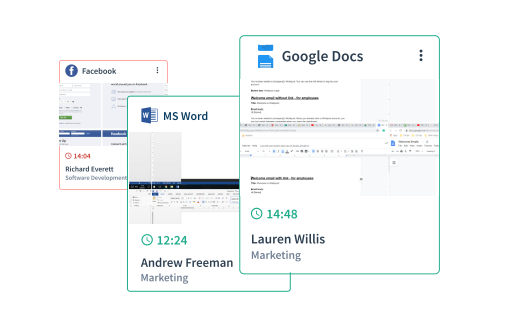
Check who can open the screenshots: an admin opens everyone’s; a team head opens their team’s, unless the admin turns that off for that head; an employee opens their own, when the admin allows it. Keep that list short, and put it in the notice and the policy.
Use the record to ask questions, not to judge
The record shows what happened on the computer. It does not show whether the work got done. Reading and thinking leave little trail of activity, so an afternoon of your best person’s best work can look like an afternoon off. Use the record as a prompt for questions, never as the verdict.
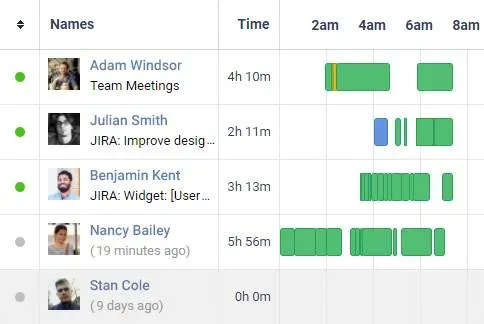
Open a day’s timeline before you open any screenshot. Each row is one person’s day, with the time beside it.
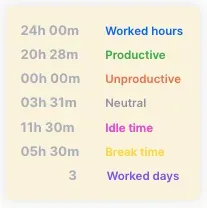
The totals card shows worked time, from clock-in to clock-out less breaks. Idle time is inside worked time, and break time is outside it. The card also splits worked time into productive, unproductive and neutral time.
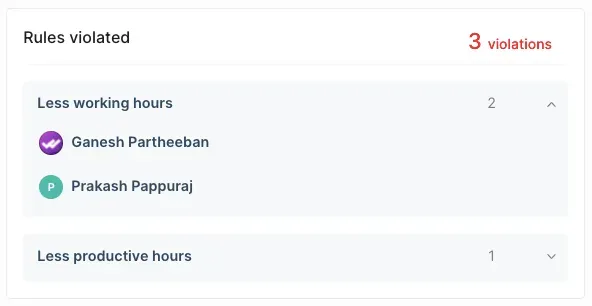
If you set rules, name them in the notice and the policy. A rule flags the people it names, so read the timeline and check the output before you raise a flag with anyone.
Output is the final test. If the hours and the output both look fine, say so and leave it alone. Keep searching the record for a problem that is not there, and the team will feel watched.
Where to start
Write the notice this week, covering what is collected, why, who sees it and where questions go. Set visible mode, how often screenshots are taken, blur, who can open the screenshots and any rules, and make the notice and the policy say each one. Tell the team openly and book the meeting before the install date. Answer every question, and turn on only what the team has heard about. After a month, look at the record with the team, and ask whether it has changed how you manage.

