
How to track employee breaks fairly, remote staff included

Record a break by taking it with Take a Break in the desktop app. Read break time beside idle time for the same day. When a break runs long or comes often, ask the person before you decide anything. Tell the team the break rule in writing before you rely on the record.
The record shows what the computer saw and when, and which time the person took as a break. It does not show what someone did away from the keyboard, and it does not show that the work got done. Output is the final test of the work.
Record each break with Take a Break
In Workfolio’s employee attendance clock-in software, staff clock in and out in the desktop app for Windows, Mac, and Linux. Workfolio tracks only while the employee is clocked in. Time taken with Take a Break counts as break time.
Ask each person to take each break with Take a Break.
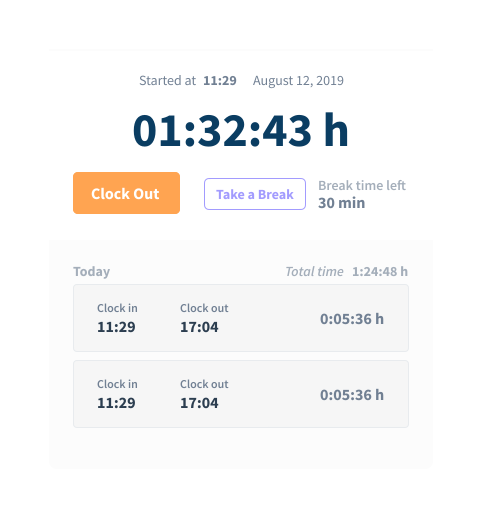
Read break time beside idle time
Read the day on the daily timeline. It is a visual log of daily activities for every employee, split into productive time, idle time and break time. Periods of inactivity are found and logged automatically. The Exclude apps from idle time tab of the Review Apps page lists the apps or websites for each team whose time always counts as active, even with no activity detected; an admin, or a team head the admin allows, sets it. A meeting app is the usual case.
Read break time and idle time for the same day together. An admin can have an idle stretch past the idle threshold put the person on break automatically, so break time is not only Take a Break. A day with much idle time and no break time is the day to ask about; first check whether an admin has set automatic breaks. Work away from the keyboard leaves no trace on the computer, so the record does not say why the time was idle. Ask the person.
Read the period on the totals card
The totals card splits worked hours into productive, unproductive and neutral time, and shows the worked days. Idle time is inside the worked hours. Break time sits beside them.
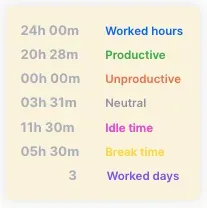
Read break time for the period beside the idle time for the same period. One long day does not make a pattern, so look across the period before you act.
When a break runs long or comes often
Treat a long or frequent break as a question for the person, not a finding. Ask what the stretch was, whether they took it with Take a Break, and whether any of it was work. Write the answer down beside the time it covers.
If the stretch was work, count it under the reporting procedure you set up. Check the output for the same period. If the work is delivered, a long break is a matter for the rule. If it is not, read the breaks with the rest of the day and with the person’s answer.
If breaks keep running long across the period, check the rule before you act on any one day’s record. Write down how many breaks a day are allowed, how long each may be, and what a manager does when one runs over: ask first. Then check the totals card against that rule each pay period.
Tell the team the rule before you rely on the record
Put the break rule in writing and give it to each person before the first tracked day. Say how to take a break, which is with Take a Break in the desktop app. Say how many breaks a day are allowed and how long each may be. Say that the timeline and the totals card show break time beside idle time, and that a long or frequent break leads to a question before any decision.
Say whether breaks are paid. How to pay remote hourly staff and contractors from tracked time sets out how to sort each stretch of the day. Check the break rules where each person works before you set the numbers.
Remote staff cannot be seen taking a break, so the written rule is what tells them how breaks are counted.
Next, write the break rule, tell each person before the first tracked day, and read the first week’s break time beside its idle time on the totals card.

